

Signals and Monitors
You send data to a Signal. It owns its key, publish URL, stored readings, missing-data expectation, missing-data incident history and missing-data callback. A Monitor links to one Signal and checks its values against rules, on the Monitor’s own schedule. One Signal can feed several Monitors, and its data is stored once. New to these? Start with Concepts.
Start with a Signal
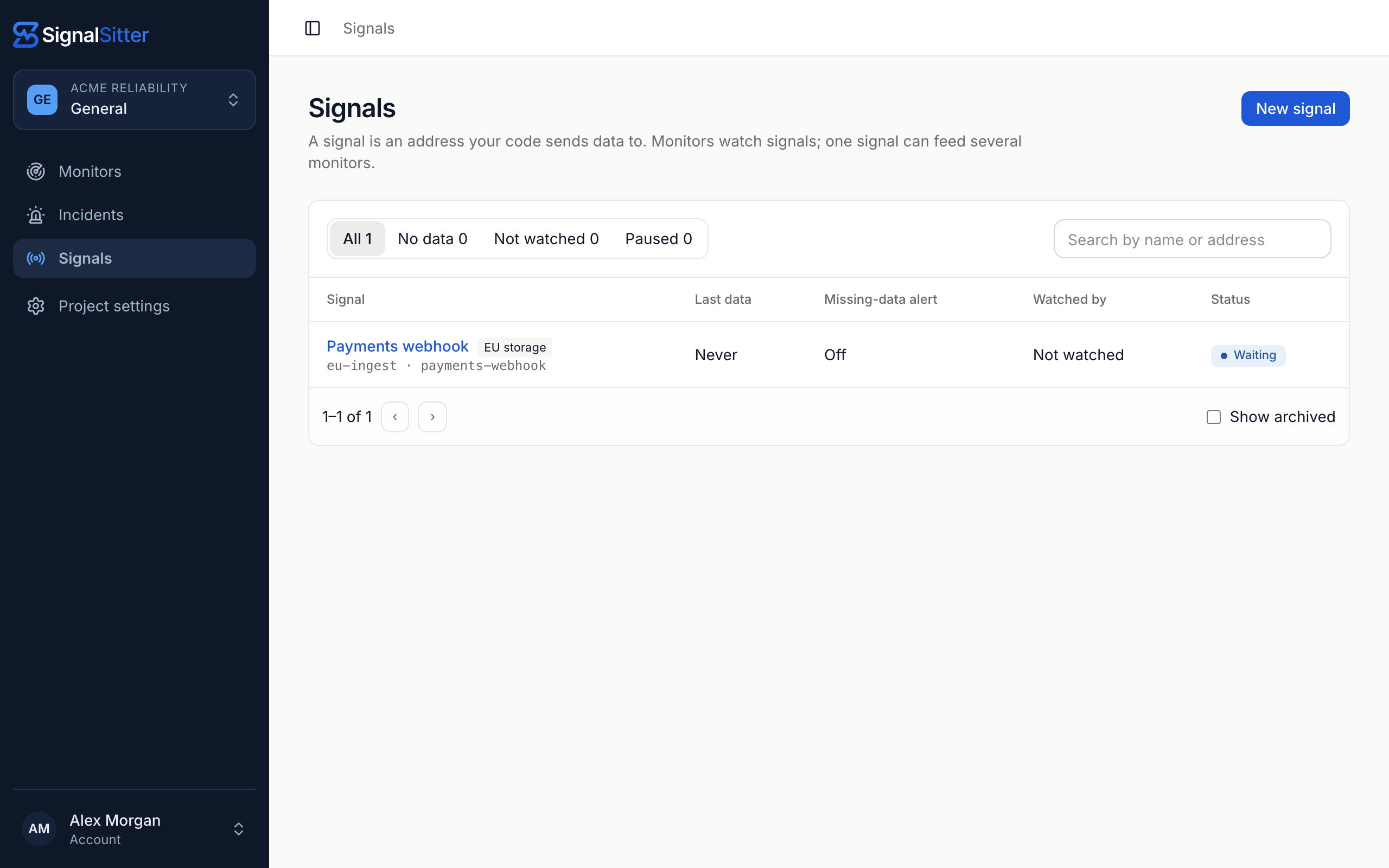
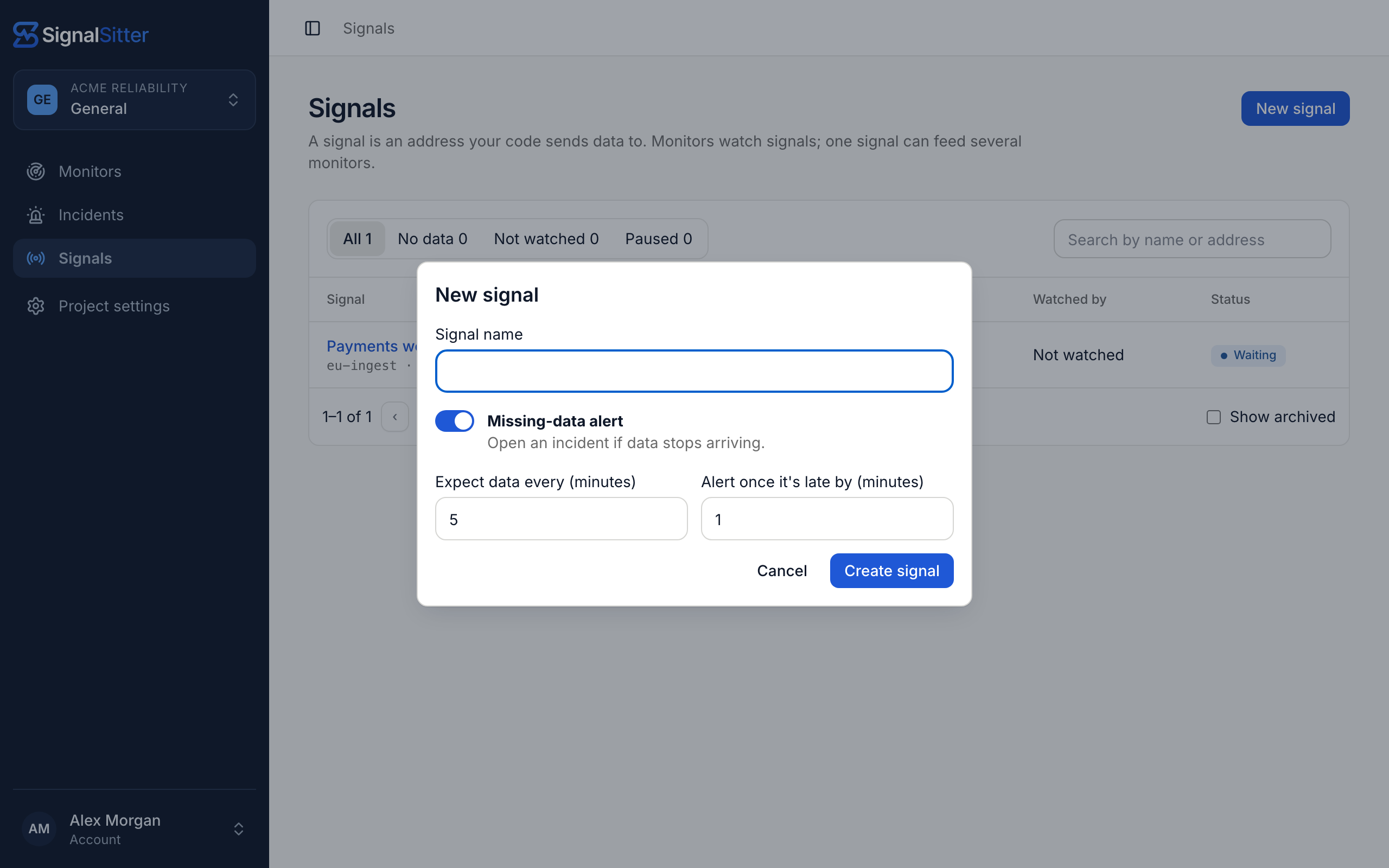
Section titled “Start with a Signal”In the dashboard, choose Monitors → New monitor → Heartbeat Only. This opens simple Signal setup without creating a Monitor. You can also choose Signals → New signal when the Signals directory is in the navigation. Name the Signal and choose whether to expect data on a schedule. Its Send data tab shows the publish URL and an example. When the first reading arrives while you are on that page, a confirmation appears; choose Continue to see the reading on the Data tab. You can send data before you add any Monitor. Its Settings tab holds the missing-data alert and alert destination. Alert emails show times in each reader’s own time zone, or your organization’s time zone for someone whose zone we don’t know. Changing the zone does not alter emails already sent.
The Signals directory shows Signals with no linked Monitor or with several linked Monitors first. Select Show one-to-one Signals to reveal those linked to exactly one Monitor. A one-to-one project may omit Signals from the navigation; direct Signal links still open.
A manage credential can also create a Signal by publishing to a new key. The new Signal starts with missing-data alerts off unless the request sets a period. A write credential publishes only to a Signal that already exists. If it sends configuration headers, they’re checked, then ignored, and the receipt lists them.
When you want to check values, open Monitors → New monitor → Rule Based Monitor, then under More options choose Watch an existing signal. Search for this Signal, name the Monitor, and continue. A second Monitor on the same Signal doesn’t create another feed or copy its readings.
Read measurements from an HTTP source
Section titled “Read measurements from an HTTP source”A Signal can also read measurements from a custom source. Open its Settings tab and choose Custom source, then choose an HTTP API or a ClickHouse query. The editor tests the connection, discovers the returned measurements, and saves the source on the Signal. You can then link one or more Monitors to evaluate those measurements. Source credentials are entered only in the signed-in dashboard and are never shown again.
Start with a Monitor
Section titled “Start with a Monitor”Open Monitors → New monitor. Choose a scheduled check-in or a number, name the Monitor, and choose whether to alert if data stops arriving. The new Signal takes the Monitor’s name and address. Guided setup then shows how to send data and, after a reading arrives, how to preview and save a rule.
To link a Monitor to a Signal you already have, choose Watch an existing signal in guided setup. The REST, SDK and CLI create operations also accept a Signal key or ID to link to. If you change shared Signal settings while linking through the API, send the Signal’s current configuration version. Those changes affect every Monitor that uses the Signal.
Guided setup defaults Alert me if data stops arriving on for a new Signal, with a five-minute expected interval and one-minute late grace; you can turn it off or change the minutes. A Signal’s settings and alert destination belong to the Signal, even when you created it together with a Monitor. API creation still requires an explicit missing-data mode for a new Signal.
When two people edit the same rule’s notification message, Save pauses at a choice: Reload latest message shows the other edit, while Overwrite with my message keeps your text for a new Save. Changes to other rules’ messages are preserved automatically.
Status and incidents
Section titled “Status and incidents”| Signal state | Meaning |
|---|---|
| Disabled | Missing-data alerts are off. This says nothing about health. |
| Unobserved | The Signal has a period, but no check-in has met an expectation yet. |
| Healthy | The current heartbeat expectation is met. |
Missing data (tripped) |
A missing-data incident is open. |
| Paused | Publishes still work, but missing-data alerts and linked Monitors’ rule windows are on hold. |
| Archived | Publishes stop. History stays readable. |
A Signal’s page shows its recent missing-data alerts. A Monitor’s page shows its rule status and rule incidents. The project’s Incidents list holds both kinds. By default, while the Signal has an open missing-data incident, a Monitor skips the rule windows it affects. Set onSignalTrip: "catch_up" to have it evaluate those windows after the Signal recovers. Pausing a Monitor doesn’t pause its Signal or any other Monitor on it.
Independent callbacks
Section titled “Independent callbacks”The Signal has a callback for its missing-data incidents. Each Monitor has its own for its rule incidents. Each can use the project default, a shared endpoint, its own inline URL, or no callback. Creating a Signal from a Monitor gives each its own setting. An inline callback’s signing secret is shown once, after you create or change it. Save it then.
Signal callbacks send com.signalsitter.signal.incident.opened.v1 when an expected check-in doesn’t arrive and com.signalsitter.signal.incident.closed.v1 when that incident closes. In the closed event, data.kind is signal_recovered when data resumes, or signal_closed for any other closure. Its source is /v1/signals/{signalKey}, and data.signal carries the key and jurisdiction. Monitor callbacks keep their own event types and source. Deduplicate retries by the event id. The delivery ID identifies one send attempt.
Lost a Signal’s inline signing secret? Open its settings, select Replace a lost signing secret, and save. The callback URL and delivery stay active. Save the new secret from the response, because later reads and retries never show it again. The old secret keeps verifying for five minutes while you update your receiver. Through the API, read the current version, then send PATCH /v1/signals/{signalId} with {"expectedConfigurationVersion": 3, "settings": {}, "rotateSigningSecret": true}. This changes only the Signal’s secret. Linked Monitors and shared endpoints keep theirs.
Delete a Signal safely
Section titled “Delete a Signal safely”Deleting a Monitor keeps its Signal and history by default. The Monitor’s delete dialog requires an acknowledgement that deletion is permanent and offers a separate, unchecked option to also delete the linked Signal. Choosing that option loads every linked Monitor for individual confirmation. Deleting a Signal also deletes every linked Monitor and its rule state, along with the Signal’s readings. So check the preview first.
Open the Signal’s deletion preview. It lists every linked Monitor, over several pages if needed. Review every page and select each Monitor yourself. None starts selected. Deletion needs the preview version and the exact set of linked Monitor IDs. If anyone linked or changed a Monitor since the preview, nothing is deleted. Cancel leaves everything as it was.
Import past observations
Section titled “Import past observations”Import history into a Signal with POST /v1/signals/{signalId}/historical-observations:
{ "expectedConfigurationVersion": 1, "observations": [ { "observedAt": "2026-10-31T12:00:00Z", "payload": { "duration_ms": 87 } } ]}Send 1 to 500 observations, in time order. They join the Signal’s stored history and count toward your organization’s pooled stored events. They don’t count as live heartbeats, and they don’t evaluate Monitor rules after the fact. An import is refused if an observation is older than your plan keeps readings, if one observation carries more values than your plan allows per reading, if the import names more than 16 different measurements, or while your overage cap is reached.
Send an Idempotency-Key. To retry an import you’re unsure about, reuse that key and the same body. Without the header, retrying with the identical body resumes the same import. Once an import has started, a changed body is refused. Before you import a large history, read Overage.
 SignalSitter documentation