

Settings
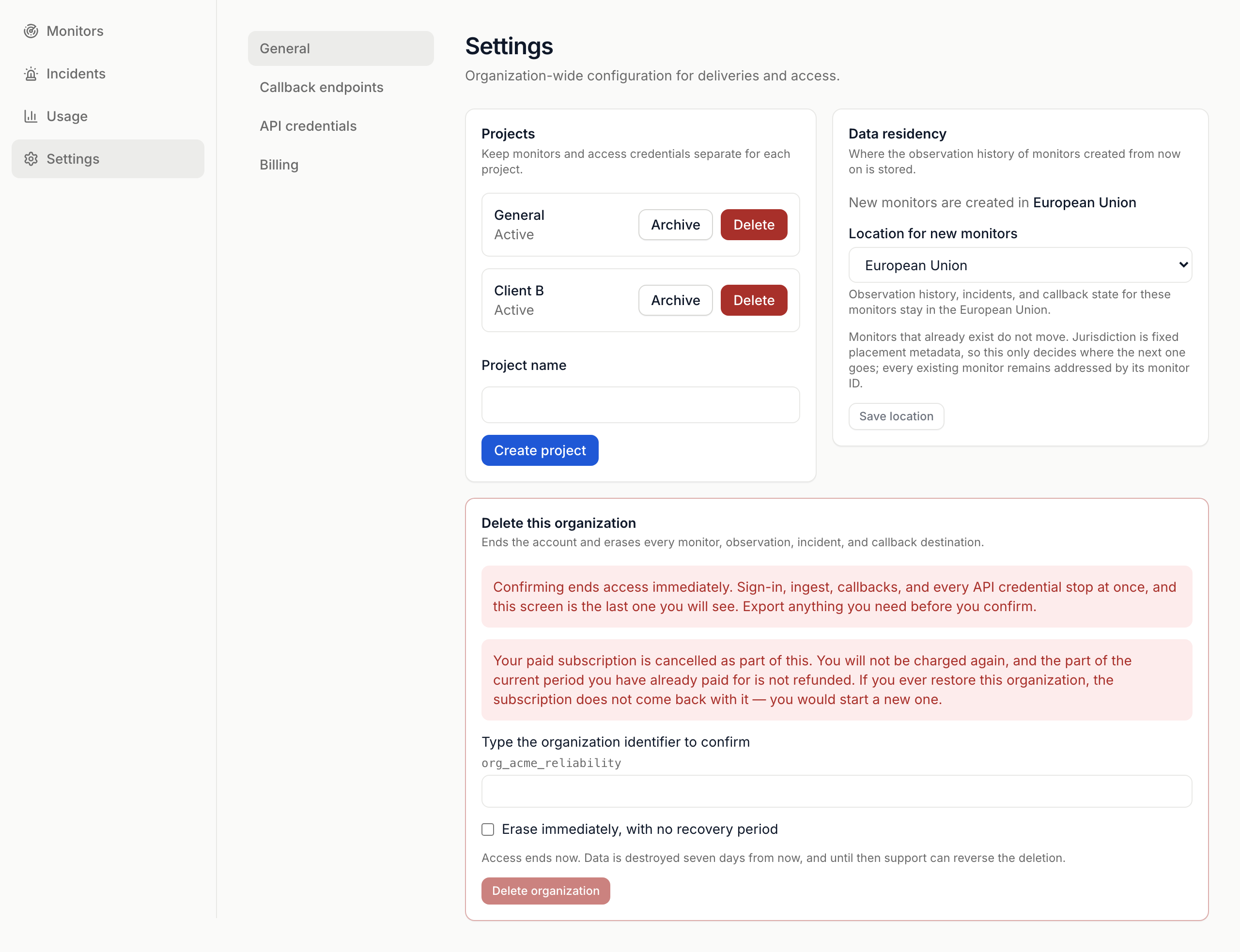
Settings > General holds your projects, where new monitors are stored, and deleting the organization. The column beside it links to Callback endpoints, API credentials and Billing.
Projects
Section titled “Projects”- Create one: enter a Project name and press Create project.
- Archive stops monitoring work for a project until you Restore it.
- Delete erases the project with its monitors, credentials, callbacks, incidents and history. Type the project ID to confirm. You can’t undo it.
You can’t archive or delete your last active project.
Data residency
Section titled “Data residency”Choose where new monitors store their history.
- Under Location for new monitors, pick No residency requirement or European Union.
- Press Save location.
Existing monitors don’t move. A monitor’s location is fixed when you create it. You can pick a different one for a single monitor on the create form.
Export your data
Section titled “Export your data”The dashboard has no export button. Use Export data in the API with an owner or admin credential.
Delete the organization
Section titled “Delete the organization”- Under Delete this organization, type the organization identifier shown above the box.
- Optional: tick Erase immediately, with no recovery period.
- Press Delete organization.
| Choice | What happens |
|---|---|
| Default | Access ends now. Data is destroyed seven days later. Until then, support can reverse it. |
| Erase immediately | Data is destroyed now. Nobody can recover it. |
A paid subscription is cancelled. You won’t be charged again, and the current period isn’t refunded. Restoring the organization doesn’t bring the subscription back.
Color scheme
Section titled “Color scheme”The Color scheme control in the header switches between Light, Dark and Match system.
 SignalSitter documentation