

Monitors
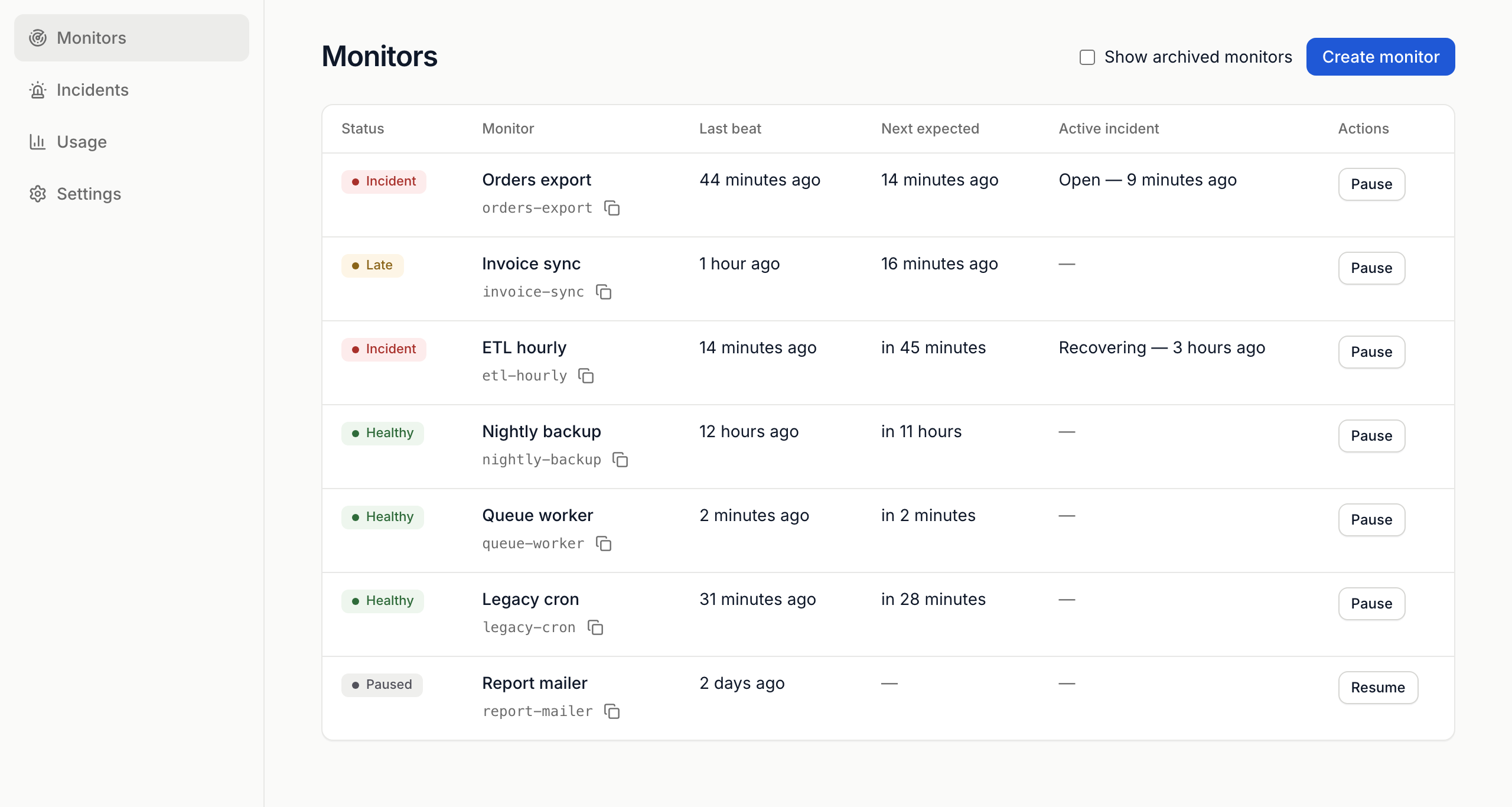
Monitors is the first screen you see. It lists every monitor in the selected project with its status, last beat, next expected beat and any active incident.
Statuses
Section titled “Statuses”| Status | What it means |
|---|---|
| Healthy | Beats are arriving on time. |
| Late | The deadline passed without a beat. |
| Incident | An incident is open or recovering. Open it from Active incident. |
| Pending | Waiting for the first beat, or still learning the cadence. |
| Heartbeat disabled | Not watching for silence. Rules still run. |
| Maintenance | Inside a maintenance window. |
| Paused, Archived | Nothing is expected of the monitor. |
| Unknown | The deadline couldn’t be read. |
An Over allowance badge means the monitor is beyond your plan’s allowance. Its beats are refused until you upgrade or remove another monitor.
Tick Show archived monitors to include archived ones.
A monitor’s tabs
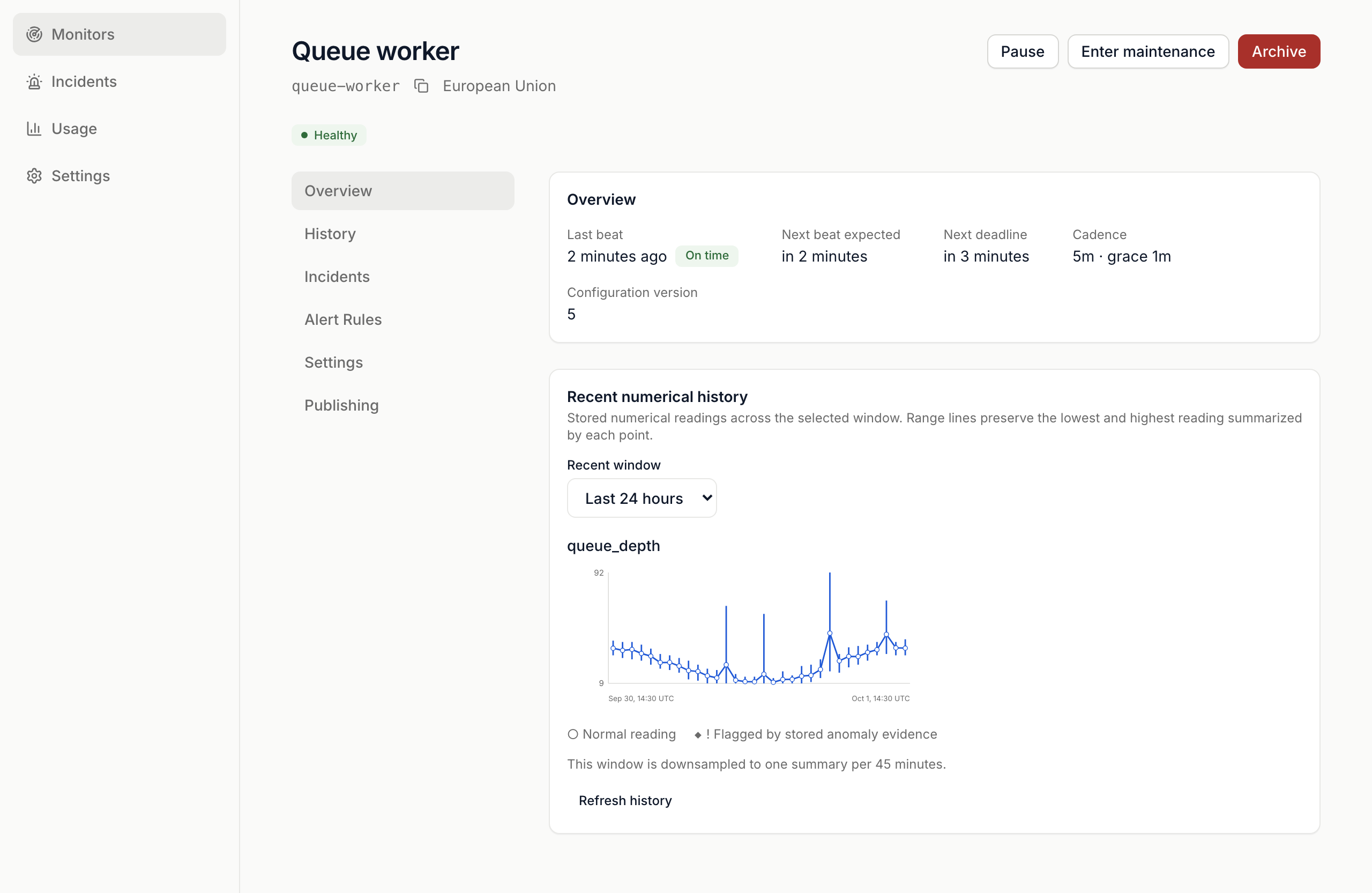
Section titled “A monitor’s tabs”- Overview: last beat, next beat expected, next deadline, cadence, and a chart of recent numeric readings.
- History: the chart plus Recent observations, every beat with its measurements. Pick a Recent window from Last 6 hours to Last 365 days.
- Incidents: this monitor’s incidents, newest first.
- Alert Rules: numeric limits. See Rules.
- Settings: Configuration, Callback destination, and Changes, a record of who changed what.
- Publishing: copyable curl and TypeScript examples for sending a beat.
Change the configuration
Section titled “Change the configuration”- Open Settings and press Edit.
- Change Name, Missing-beat alerts, Interval seconds (60 to 31,536,000) or Grace seconds (up to 604,800; below 60 counts as 60).
- Press Save changes.
Your plan may set a higher minimum interval. The form tells you when it does.
If someone changed the monitor while you were editing, nothing is saved. Press Refresh to the latest state and make your change again.
Pause, maintenance and archive
Section titled “Pause, maintenance and archive”The buttons sit at the top of the monitor. Each one asks you to confirm.
| Button | What happens |
|---|---|
| Pause | Beats are still accepted. No incidents open until you press Resume. |
| Enter maintenance | Set Starts at and Ends at. Missed beats don’t open incidents during the window. It lasts at most 30 days and ends on its own. Exit maintenance ends it now. |
| Archive | The monitor stops accepting beats. History is kept. Press Restore before the Restorable until date to bring it back. |
Pause and Resume are also in the list’s Actions column.
Delete a monitor
Section titled “Delete a monitor”The dashboard doesn’t delete monitors. Archive it, or use Delete monitor in the API.
 SignalSitter documentation